Connect Slack
Link Slack channels to an organization and configure assistant replies and scan alerts.
Open OpenHack and select the organization you want to work in.
Slack connects conversations to an OpenHack organization. Installing the app, linking a channel, and subscribing to scan notifications are separate steps.
Install and link a channel
Slack must be enabled for your organization. To connect a shared channel, use an account that is both an OpenHack organization owner and a Slack workspace admin or owner.
- Open the organization's Settings → Slack settings.
- Choose Add to Slack and approve the workspace installation.
- In Slack, invite the OpenHack app to the channel your team will use.
- Run
/openhack connectin that channel. - Complete the connection flow and select the intended OpenHack organization.
- Return to Connection in OpenHack and check the linked workspace and channel.
Mention @OpenHack in the linked channel to ask a security question. Personal assistant conversations connect separately; connecting a personal DM does not change a channel's organization.
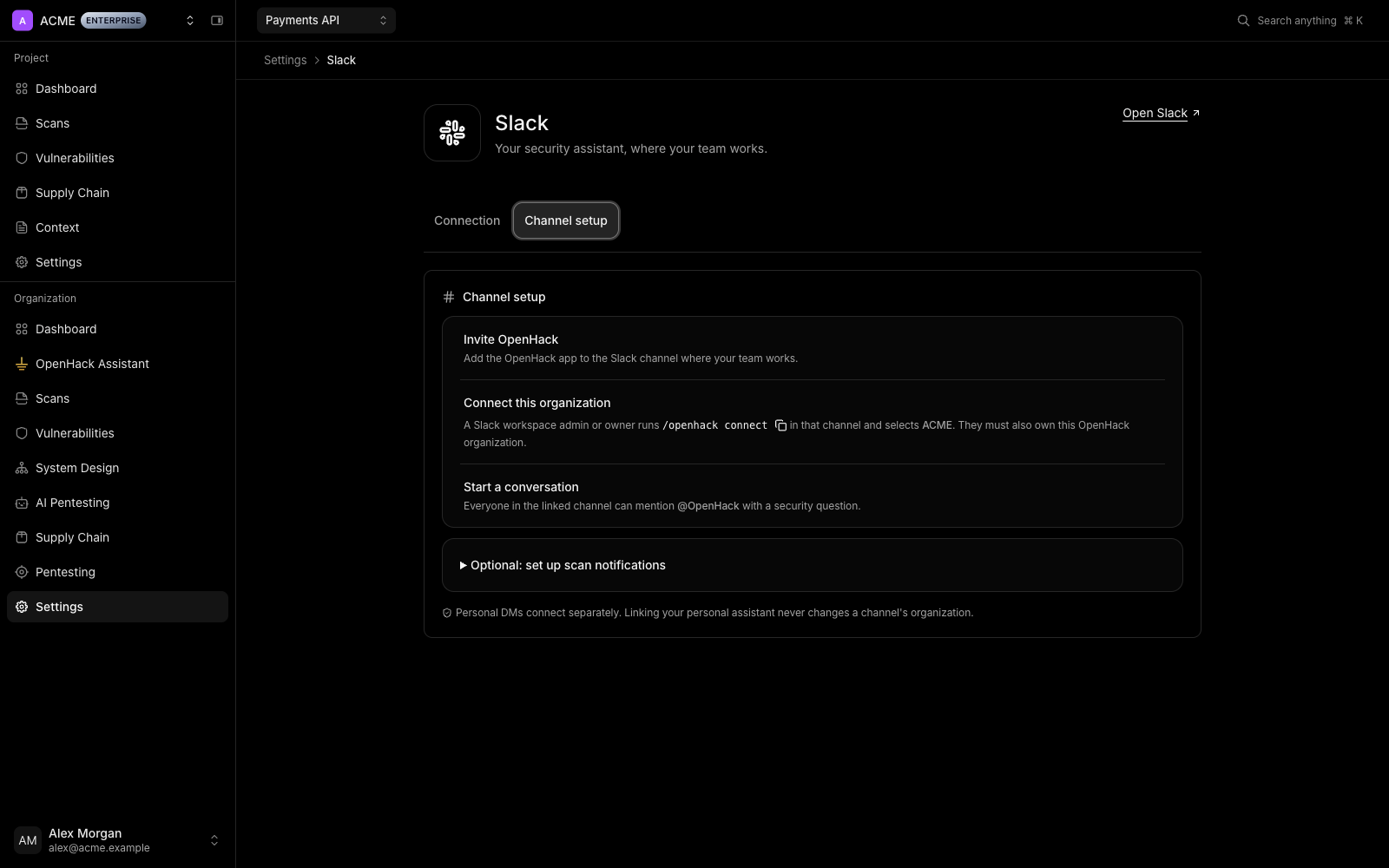
Channel setup explains how to link the organization from Slack. Actual product screen with fictional ACME demo data.
Assistant and alerts
Open Assistant & alerts. Organization owners can change these settings, and changes save automatically.
| Setting | Behavior |
|---|---|
| Mentions only | Require an explicit mention for assistant replies. |
| Auto in threads | Allow automatic replies in supported threads. Both modes use thread context. |
| Scan notifications | Enable or pause subscribed scan-started, completed, and failed updates. |
| Trigger scans from Slack | Currently unavailable: the Slack assistant is read-only. |
Subscribe to scan updates
Open Channel setup, expand the optional scan-notification instructions, and choose a project to get commands for that project. Run the commands in the linked Slack channel. Workspace admins and owners manage subscriptions.
| Command | Purpose |
|---|---|
/openhack subscribe <project> | Subscribe to a project's scan updates. |
/openhack subscribe <project> --severity high | Filter completed-scan notifications to high-severity findings and above. |
/openhack unsubscribe <project> | Stop that project's notifications. |
/openhack list | Inspect active subscriptions. |
/openhack mute 2h | Pause notifications for two hours. |
/openhack ask <question> | Ask a security question. |
Replace the placeholders with the project reference shown by OpenHack or your question. Subscribing sends notifications; it does not start scans. To automate scanning, create a scan schedule.
Disconnect
Run /openhack disconnect to unlink the current channel. To remove the organization's Slack connections together, use Connection → Disconnect Slack in OpenHack.
The organization-wide action removes linked channels, personal assistant connections, and scan subscriptions for that organization. The Slack app remains installed for other organizations using it.
If notifications are missing
Check the channel connection, project subscription, Scan notifications setting, severity filter, and any temporary mute. If the integration is unavailable in OpenHack, ask your organization owner to check access before repeating installation.