Read organization and project briefings
Review security priorities, follow recommended actions, compare trends, and share a briefing with your team.
Open OpenHack and choose Dashboard under Organization for a summary across projects. Choose Dashboard under Project to focus on the selected repository.
Organization briefing
- Confirm the organization in the top-left selector.
- Open its Dashboard and read the Organization briefing headline and summary.
- Review Do next for prioritized findings. Choose a finding to inspect its evidence and current status.
- Compare the posture metrics and backlog trend over the selected period.
- Use the projects table to identify which repository needs attention, then open that project for more detail.
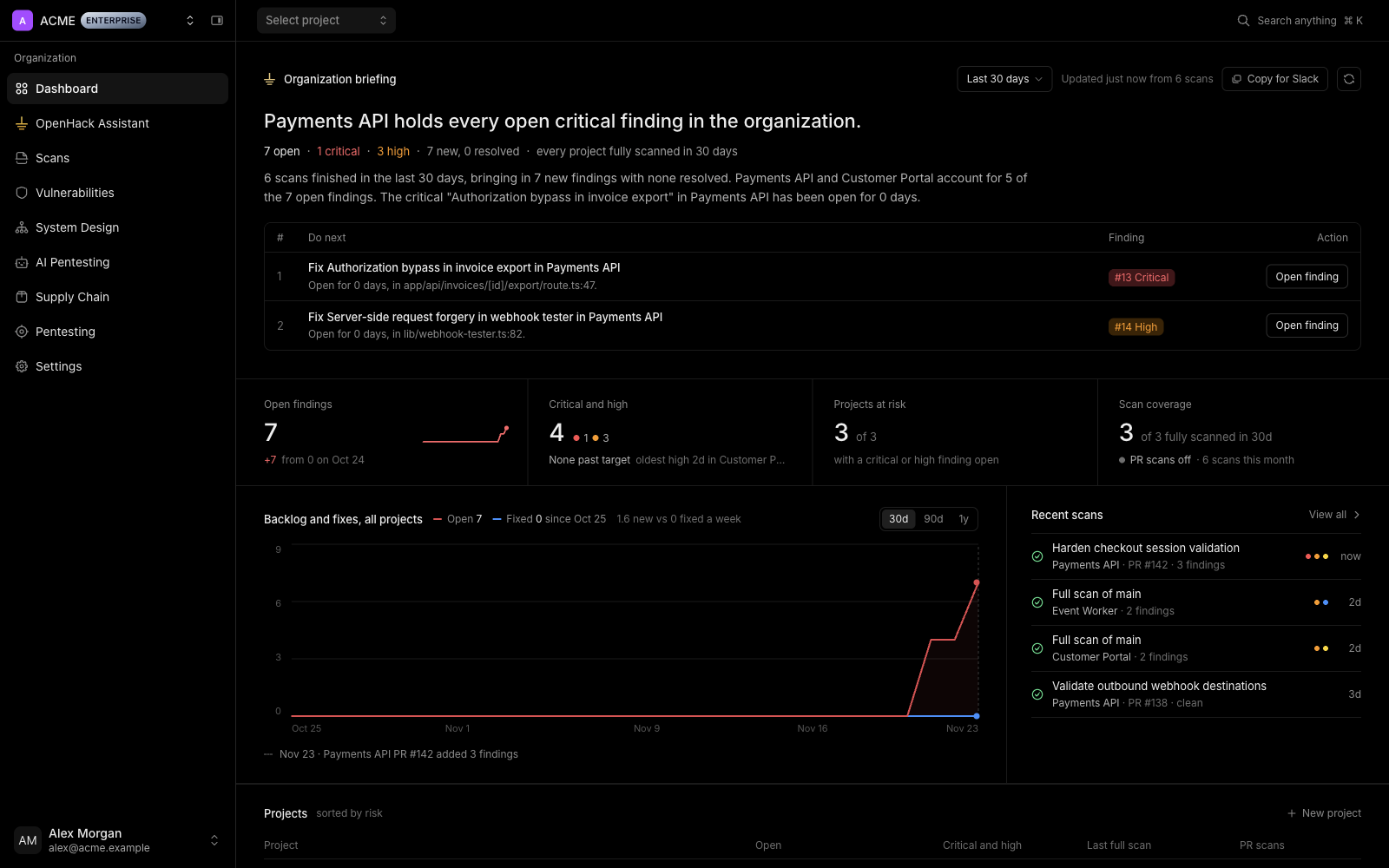
This briefing summarizes a fresh Enterprise demo organization with three projects. Findings, scans, and briefing data are fictional examples captured in the actual app.
The organization view combines projects. A critical finding concentrated in one repository can drive its recommendation even when other projects have fewer issues. Open the linked result to understand its affected code and remediation state.
Project briefing
- Select the project in the header and open project Dashboard.
- Read the briefing for changes in this repository’s backlog and scan coverage.
- Open a recommended finding, or use View all actions to review the action list.
- Compare open findings, critical and high findings, live-on-main information, and scan coverage.
- Inspect the backlog and affected-directory views to focus the next investigation.
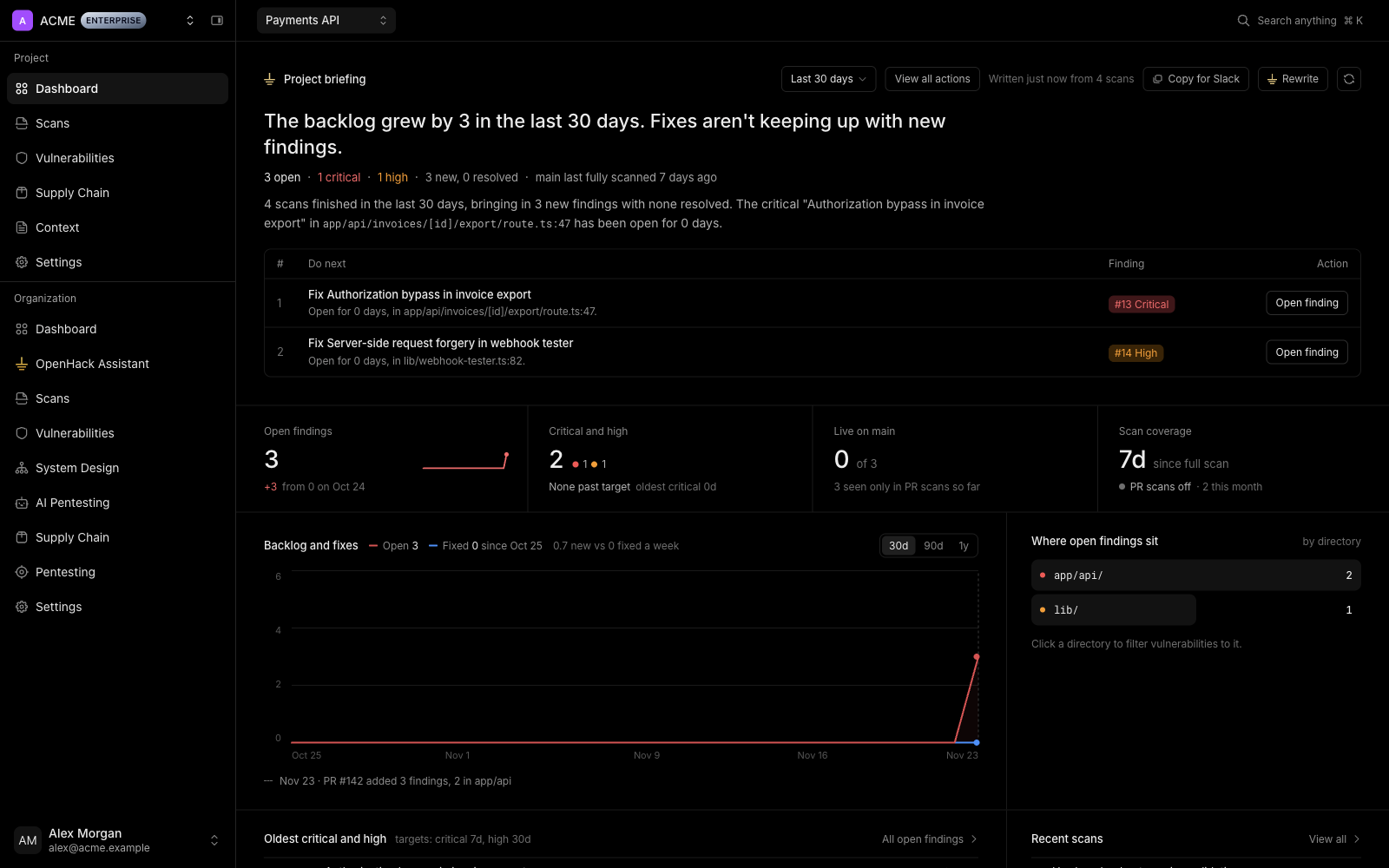
The project briefing narrows the evidence to one repository. Actual product screen with fictional ACME demo data.
Counts can differ from a combined vulnerability inbox: check the scope, period, finding source, and branch before comparing them. A recommendation does not change a finding’s status or apply a fix.
Change the period and refresh
Use the date-range control, such as Last 30 days, to choose the reporting period. Check the briefing’s update time before sharing it. Briefings may use saved summaries; Refresh briefing data retrieves the current underlying data. Use Rewrite, when shown, to request updated briefing text.
Refreshing or rewriting a briefing does not start a repository scan. To analyze newer code, run a scan, wait for it to complete, then revisit the dashboard.
Share a briefing
Choose Copy for Slack to copy the briefing, then paste it into the intended conversation and review the text before sending. This action copies content; it does not post a message or configure the Slack integration.
For a downloadable findings report, use Reports and exports. For follow-up questions across projects, open the OpenHack Assistant.