Schedule full scans
Set a daily, weekly, or monthly full scan of a project’s default branch.
Open OpenHack and select the organization and project you want to work in.
Scheduled full scans automatically analyze the connected repository's default branch. Configure a schedule separately for each project.
Before you start
- Sign in as an organization owner to change the schedule. Scheduling is configured per project, but changing it is restricted to organization owners because a schedule consumes organization scan usage.
- Connect a GitHub repository to the project.
- Use a plan with full scans enabled. The scheduling screen shows whether your project is eligible.
Create a schedule
- Open the project's Settings → Scheduled scans.
- Find Scheduled full scans and turn on the switch.
- Select Daily, Weekly, or Monthly under Frequency.
- For weekly scans, select Day of week. For monthly scans, select Day of month.
- Set Time, checking the time zone displayed beside the field.
- Choose Save schedule.
- Confirm the saved Next scan date and time.
Choose the intended time zone in the form. The form displays the saved schedule's time zone when you return; do not assume the displayed time is UTC. For a monthly day that does not exist in a shorter month, the schedule uses that month's last day.
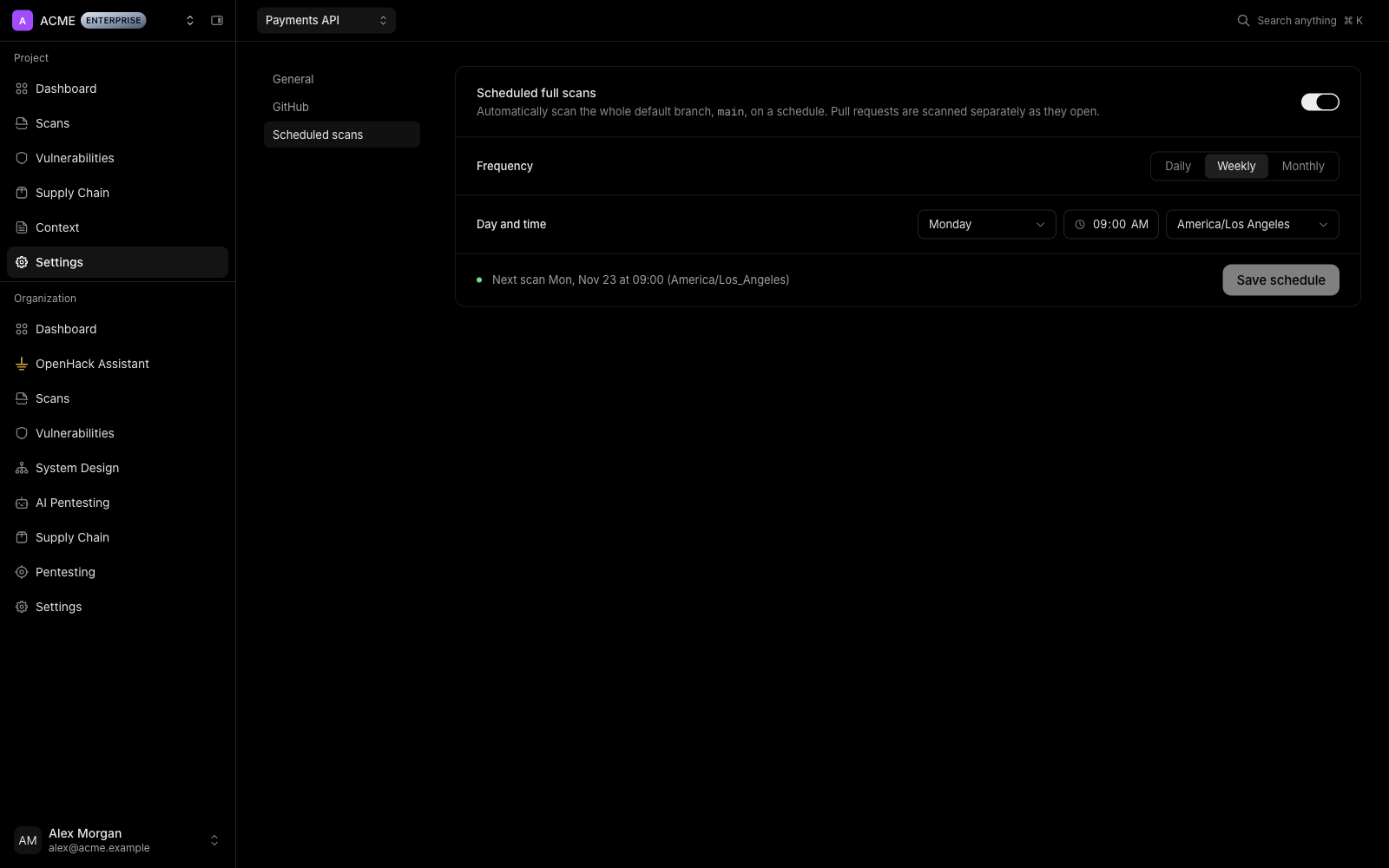
Check the saved time zone and next scan date. Actual product screen with fictional ACME demo data.
Review scheduled runs
Open Scans to inspect the run and its findings. The schedule shows the next planned scan; it does not guarantee that analysis has completed at that time. Check scan history for completion or failure details.
Change or pause a schedule
Edit the frequency, day, or time and choose Save schedule. To pause future scheduled runs, turn off the switch and save. Pausing the schedule is separate from cancelling a scan already in progress.
If a scan does not start
Check that the repository is still connected, the organization still has full-scan access, and the schedule is enabled and saved. Review any status message beneath the schedule and inspect scan history before starting another run.