Create and manage projects
Create a project, choose its URL, connect a repository, and manage project settings.
Select the intended organization in OpenHack. A project keeps one application's repository connection, scans, context, and findings together.
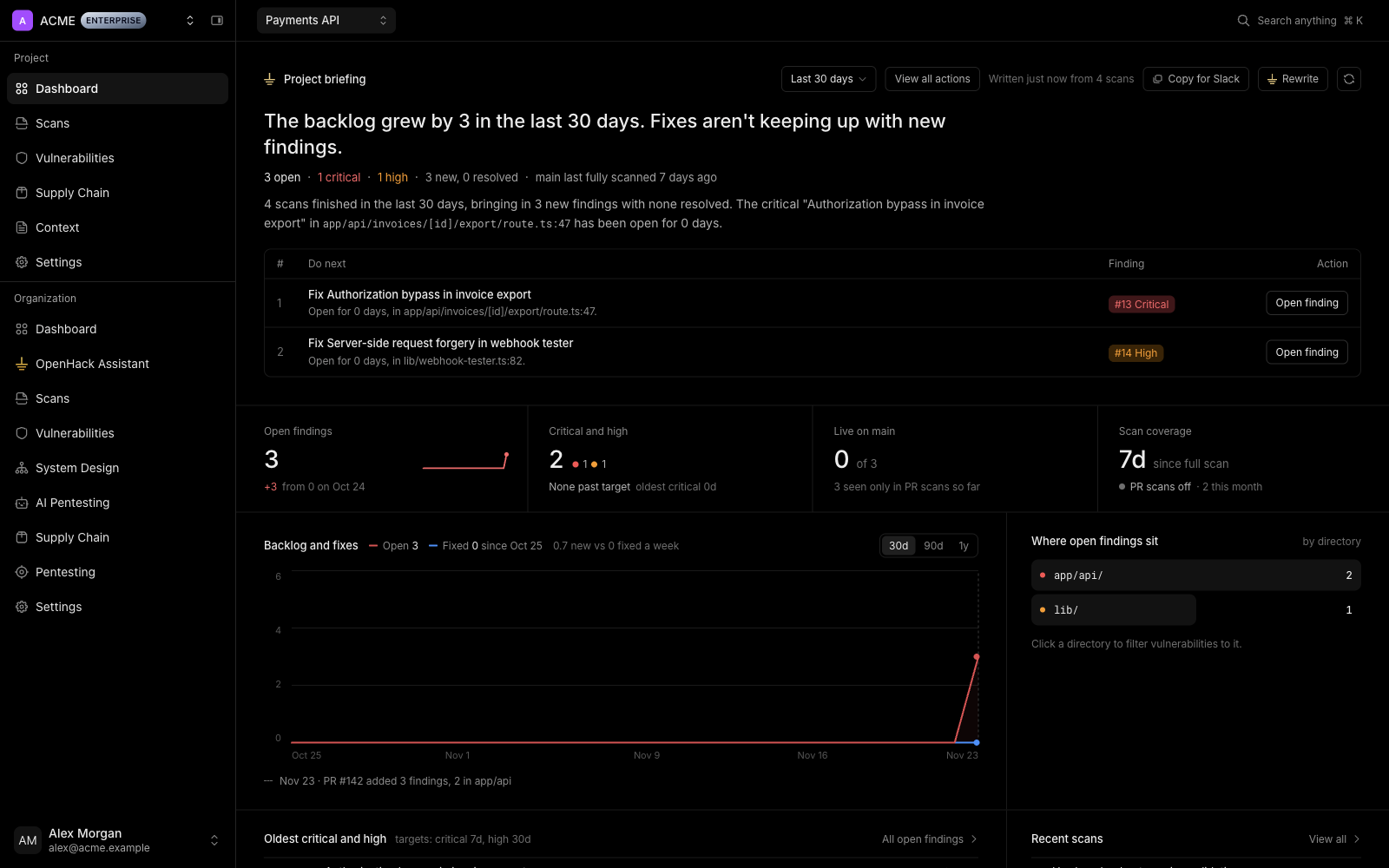
Check the organization and project selectors before creating or changing a project. Actual product screen with fictional ACME demo data.
Create a project
- Open the project selector and choose Create Project.
- Enter Project Name.
- Review Project URL. Use the availability indicator to choose an unused URL.
- Choose Create Project and wait for the new project to open.
- Connect its GitHub repository and add context.
Project creation depends on your role and your organization's project allowance. If the app shows a limit, ask an organization owner to review access or billing.
Read the dashboard
Open Dashboard for the selected project's security briefing. Use Scans to inspect individual runs and Vulnerabilities to investigate issues. An organization dashboard covers a broader scope, so confirm the selected project before comparing counts.
Rename or delete a project
Open the project's Settings. Under General, edit Project name or Project URL, then choose Save. The URL is used in links to the project, its findings, and its scans. Review Delete Project carefully before confirming deletion; it removes project data and is not a way to pause scanning.
To pause recurring work while keeping the project, turn off and save its scan schedule.
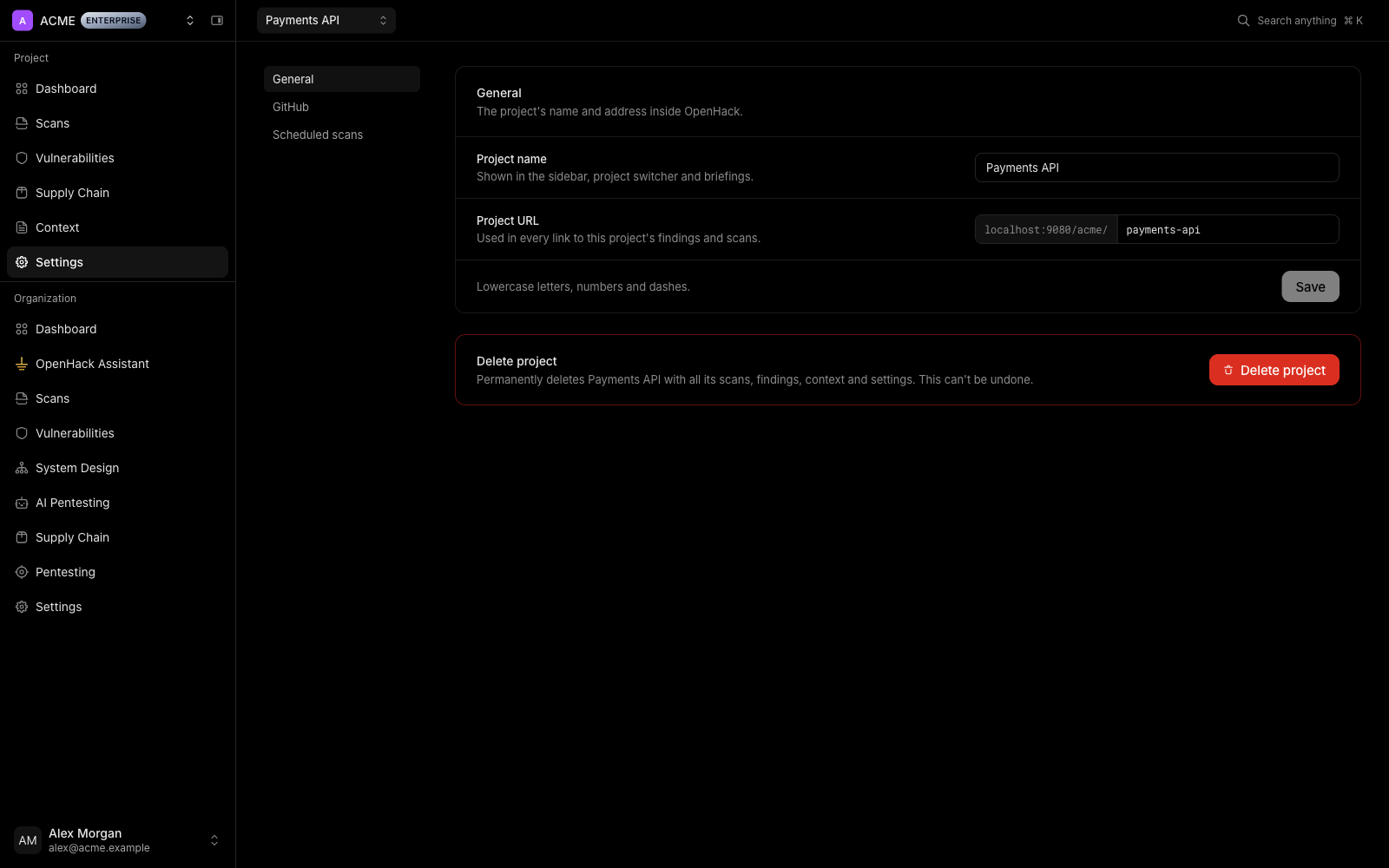
General settings control the project name and URL; Scheduled scans has the separate schedule controls. Actual product screen with fictional ACME demo data.