Manage your organization and account
Manage members, billing, notification preferences, and organization settings in the web application.
Open OpenHack and check the selected organization. Organization Settings has a left navigation for General, Members, API keys, Billing and usage, Audit logs, Account, and Notifications. Your personal account settings apply to your own account.
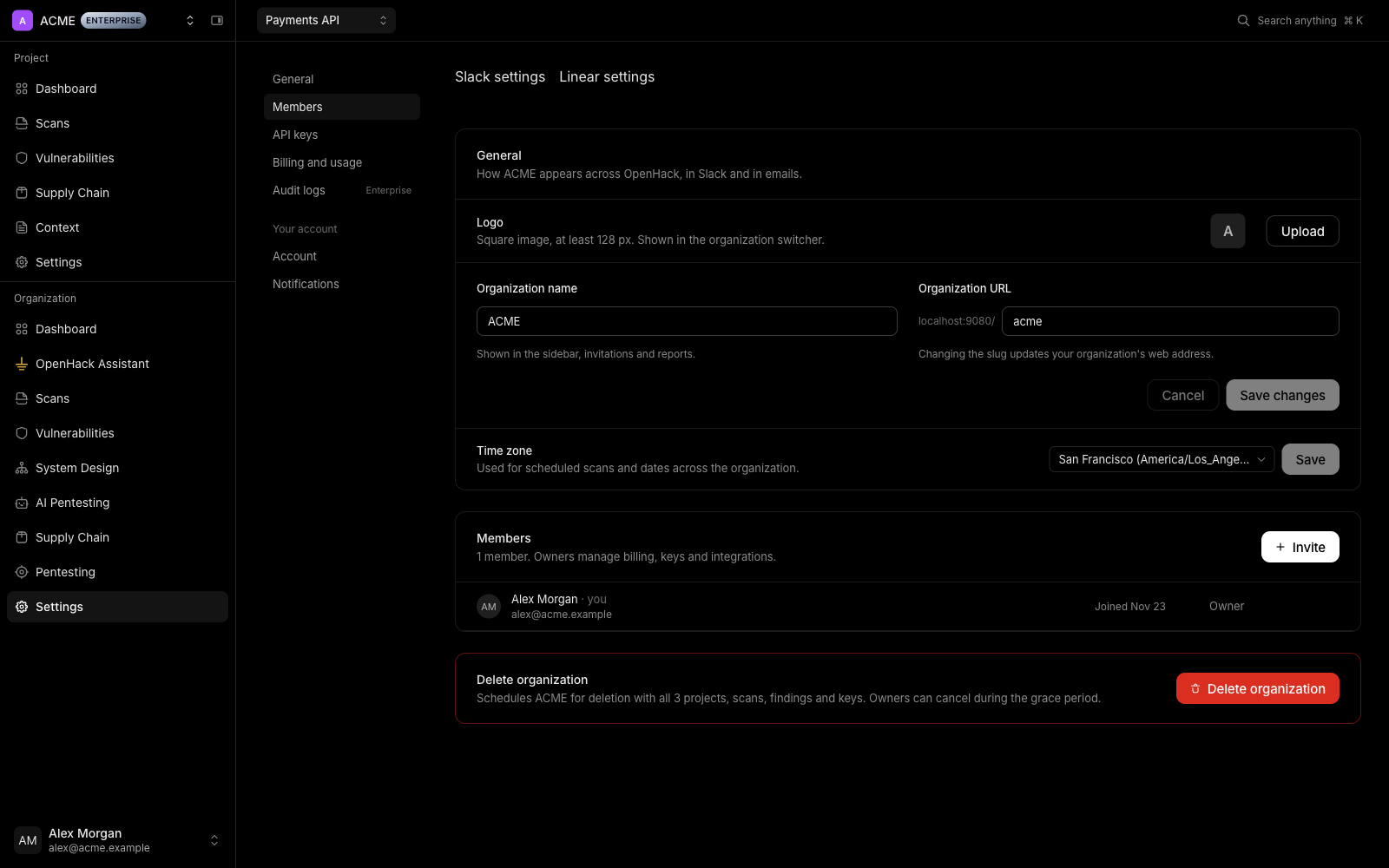
Open Settings in the organization section of the sidebar. Actual product screen with fictional ACME demo data.
Organization settings
Open organization Settings → General to update the organization name and URL, upload a square logo, or set the time zone used by dates and scheduled scans. Save changes using the action shown in the form. Only use deletion controls when you intend to remove the organization; read the confirmation and any waiting period shown by the app.
Invite and manage members
- Open Settings → Members.
- Choose Invite, enter the teammate's email address, and select the appropriate role.
- Send the invitation and check the pending invitations list.
- Use Resend if an invitation needs to be sent again, or revoke it if access is no longer needed.
- For an existing member, use the role selector or removal action if your account has permission.
An invitation is pending until accepted. Removing a member and revoking a pending invitation are different actions. Owners manage membership; available actions also protect the organization's owner access.
Billing and usage
Open Settings → Billing and usage to review the current plan and subscription controls. Review the price, billing interval, included usage, and effective date shown by the app before confirming a change. Follow the billing portal action for payment and invoice management when available.
Scroll through Settings → Billing and usage to review usage for the billing period, credits, and historical usage. Starting a scan or AI operation can consume usage; a plan entitlement and a remaining credit balance are separate requirements.
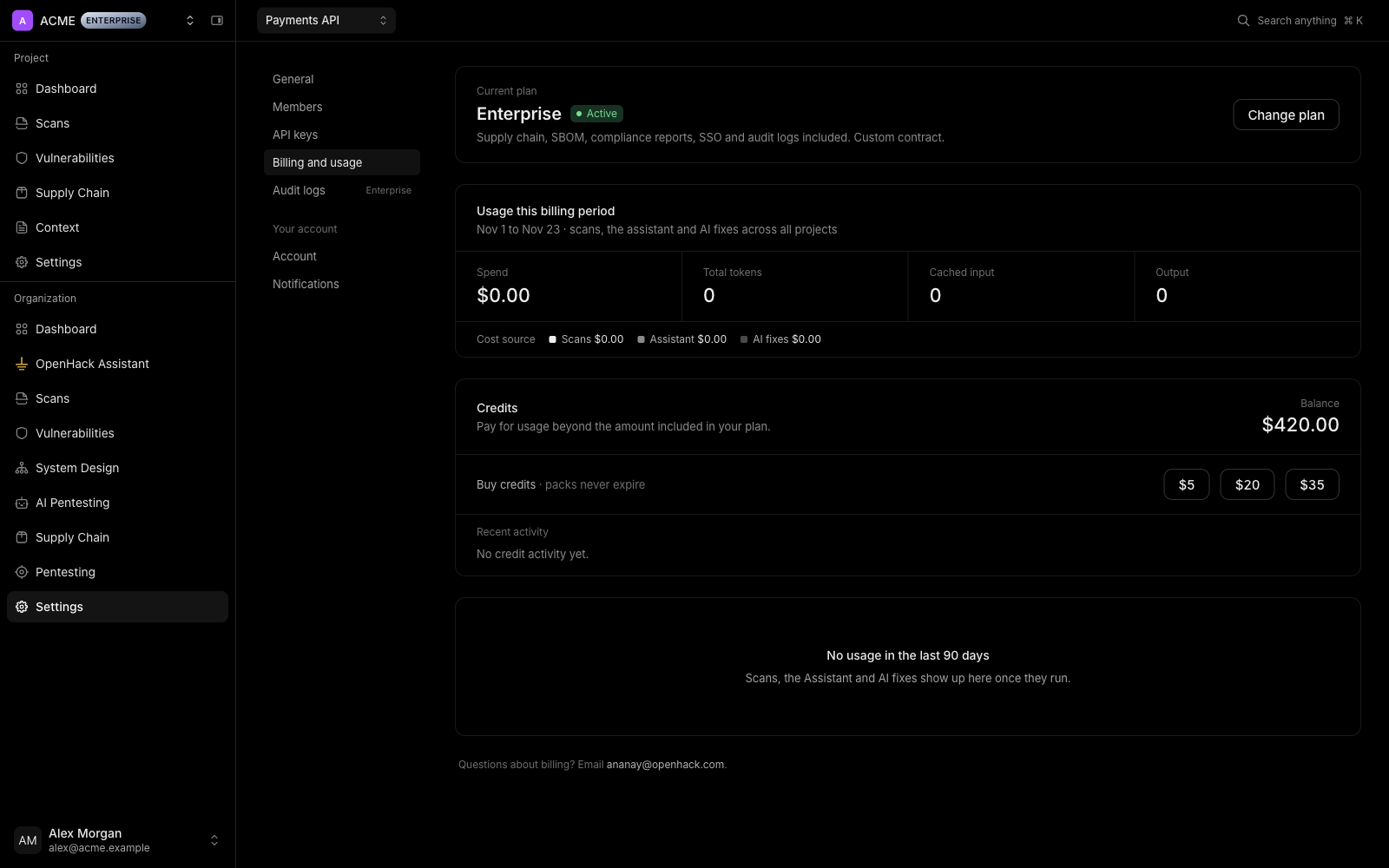
Review the plan and usage in the selected organization. Actual product screen with fictional ACME demo data.
Personal notifications
- Open account settings and select Notifications.
- Under Full repository scans, choose whether to receive started, completed, and failed scan emails.
- Configure the same choices under Pull request scans.
- Toggle Weekly findings summary for the weekly digest of open findings.
- Wait for each change to save before leaving. If saving fails, the switch returns to its previous value.
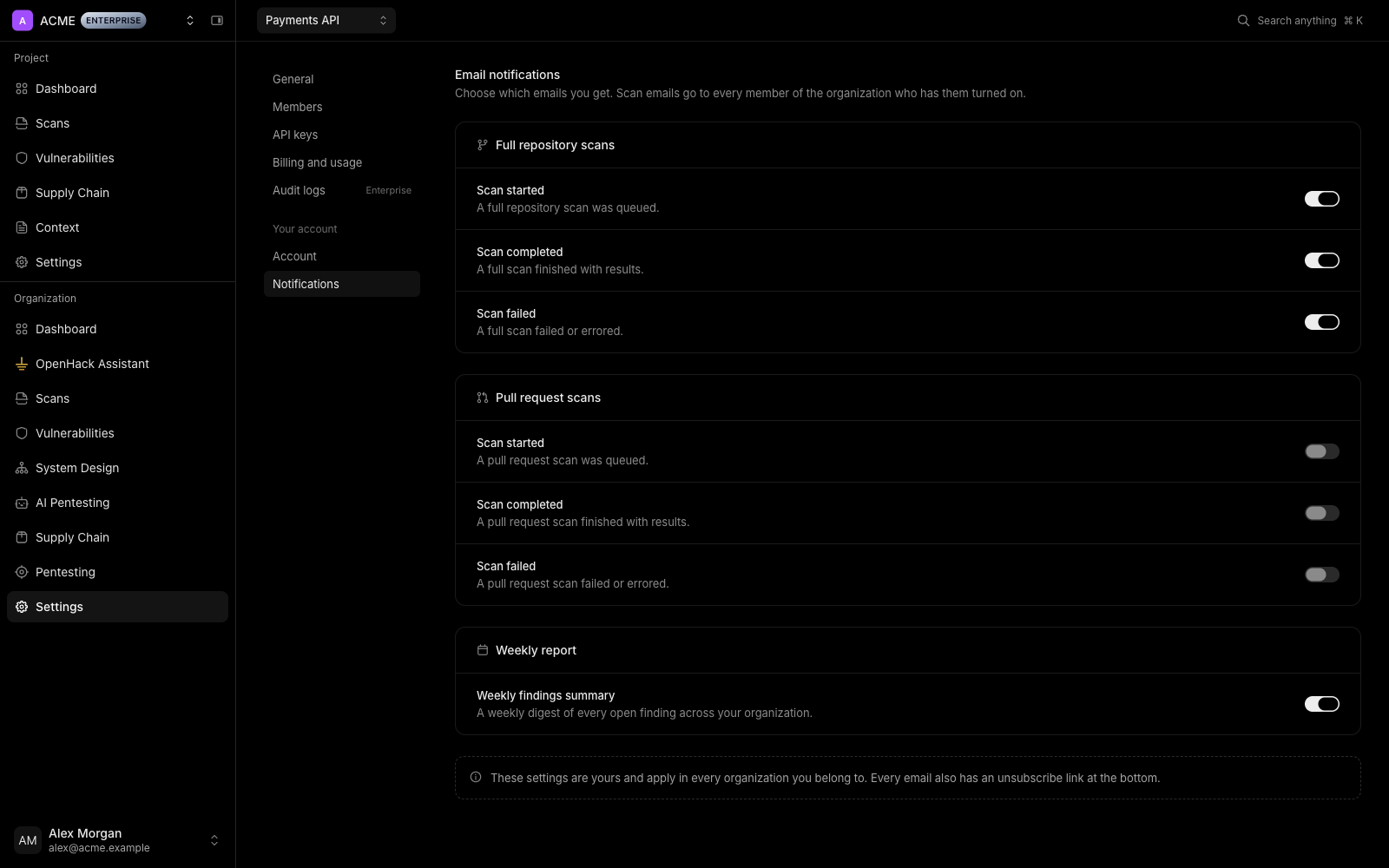
Choose which scan emails and weekly summaries you receive. Actual product screen with fictional ACME demo data.
Preferences apply to you across organizations. Scan emails go to organization members who have enabled them. Email unsubscribe links also change your notification preferences. Slack notifications use a separate integration.
Manage access keys in the web application
Open Settings → API keys to manage keys issued by your organization.
- Choose Create key.
- Enter a descriptive name, then choose Create key.
- Copy the generated key into your credential manager immediately. The complete key is displayed only once.
- Review existing keys by name, prefix, creation date, and last-used date.
- Use the removal action to revoke a key that is no longer needed. Confirm that it moves to Revoked Keys.
Revocation stops that key from being used. Replace a key in any dependent tool before revoking it if you need uninterrupted access. Never include the full value in screenshots or support messages.
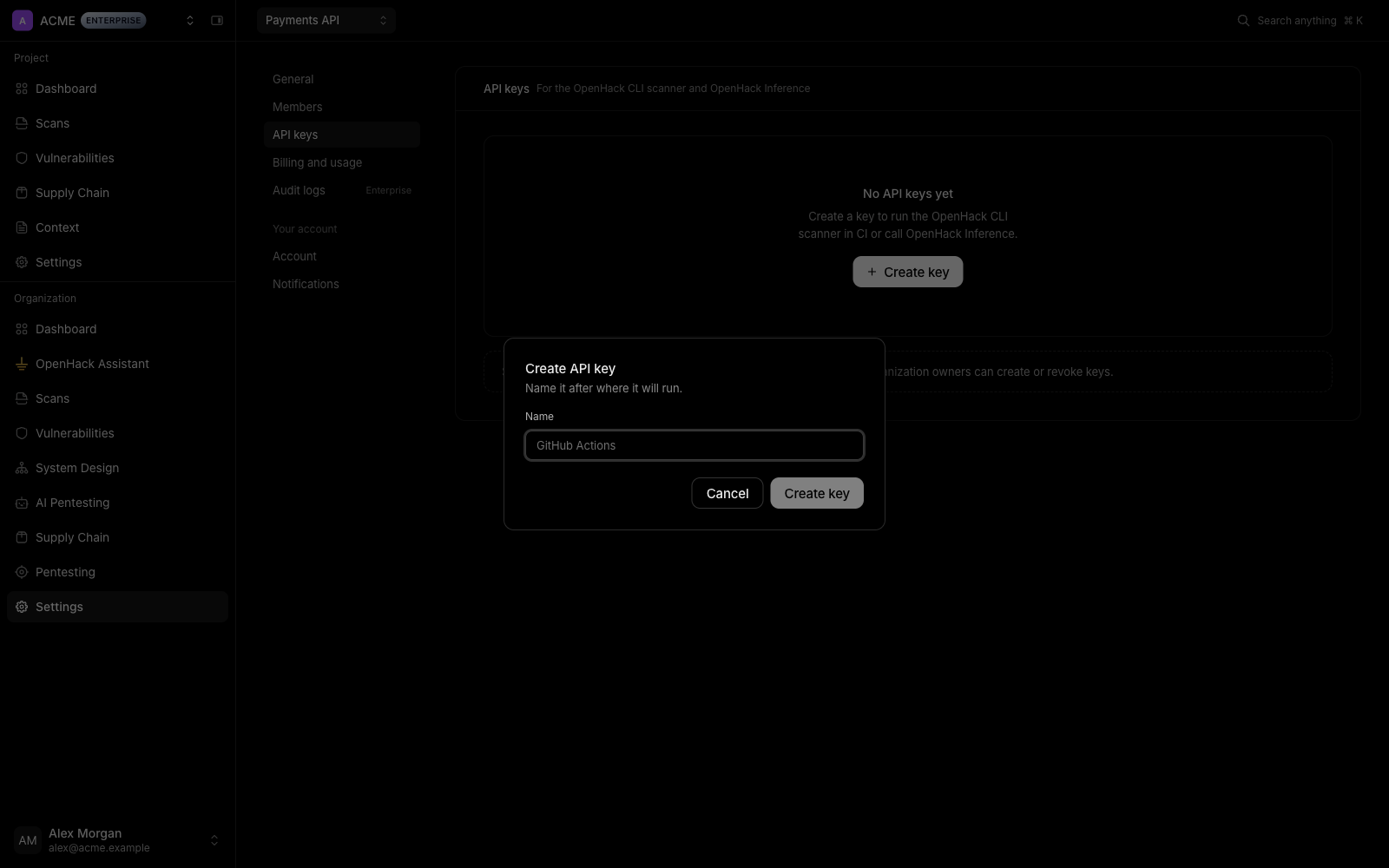
Name the key for its purpose before creating it. Actual product screen with fictional ACME demo data; no secret is shown.
Audit logs
Enterprise owners can open Settings → Audit logs to inspect activity by people and automation. Filter events and export CSV or JSON for a review.
Feature availability and support
Features can depend on the plan, your role, remaining usage, and organization-specific enablement. If an action is absent, confirm the organization and ask an owner to check access. When contacting support, include the affected project and the visible error message.