Navigate your workspace
Switch organizations and projects and find each platform feature in the sidebar.
Open OpenHack. The organization selector is at the top left. The project selector is in the page header. Check both before changing settings or starting work.
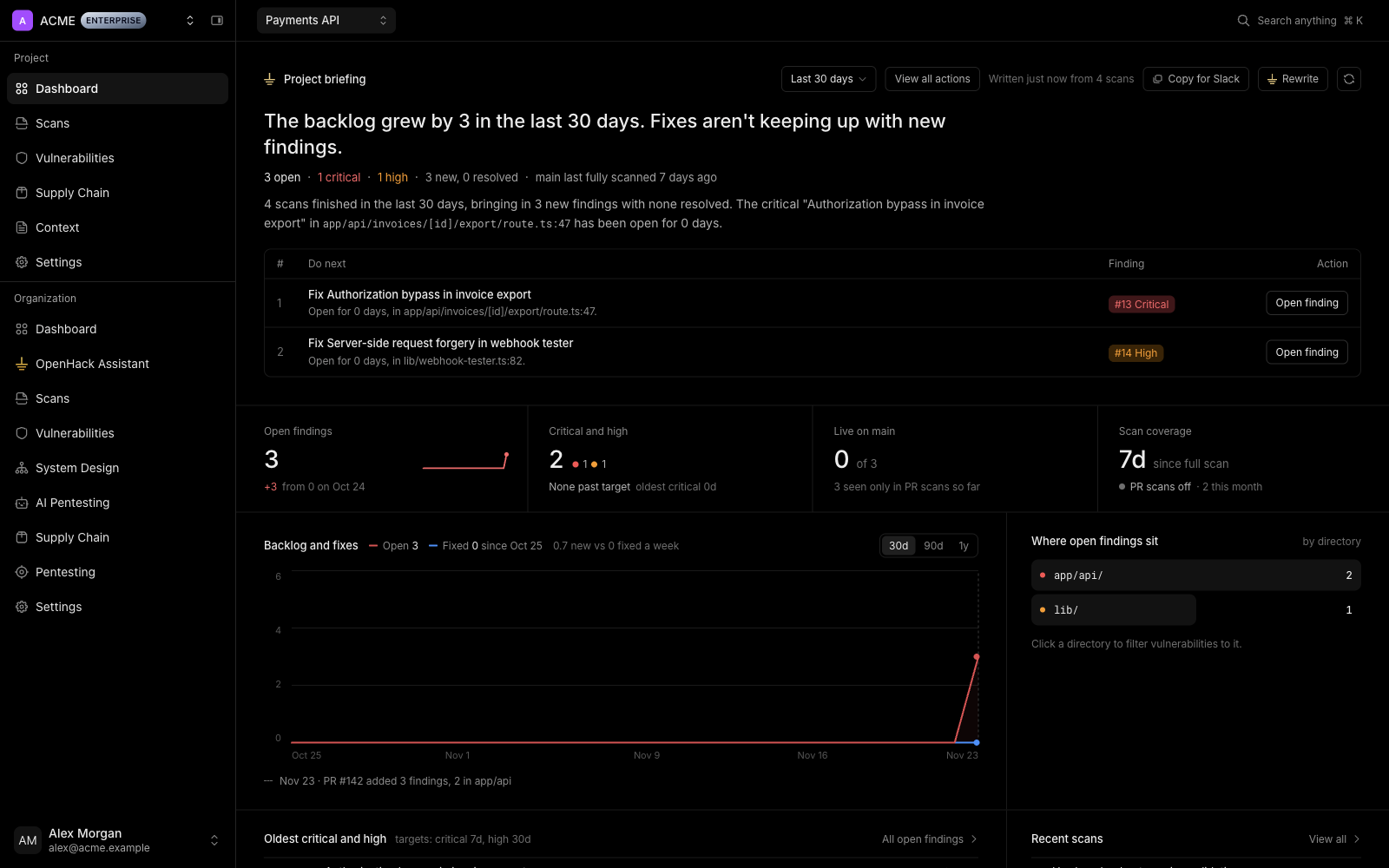
The sidebar separates work for Payments API from work across ACME. Actual product screen with fictional demo data.
Project navigation
| Section | Use it to |
|---|---|
| Dashboard | Read the project briefing, recommended actions, and security trends. |
| Scans | Start or review scans of this repository. |
| Vulnerabilities | Investigate findings, assign owners, and track remediation. |
| Supply Chain | Review dependencies, fixes, and exports. |
| Context | Describe the application and its security boundaries. |
| Settings | Manage the project name and URL, GitHub connection, and scheduled scans. |
Organization navigation
| Section | Use it to |
|---|---|
| Dashboard | Read the organization briefing and compare projects. |
| OpenHack Assistant | Ask questions across the organization. |
| Scans | Find scan activity across projects. |
| Vulnerabilities | Investigate findings across projects. |
| System Design | Map components and connections. |
| Supply Chain | Review dependency risk across projects. |
| Pentesting | Manage engagements and import reports. |
| Settings | Manage members, account preferences, integrations, billing, keys, and audit logs. |
Some sections require the appropriate plan or organization access. Use the organization-level section even if a project remains selected in the header when you want the broader view.
Find a setting
| Setting | Where to open it |
|---|---|
| Repository connection and PR reviews | Project Settings → GitHub |
| Recurring default-branch scans | Project Settings → Scheduled scans |
| Organization name, URL, logo, or time zone | Organization Settings → General |
| Invitations and roles | Organization Settings → Members |
| Slack or Linear | Organization Settings → Slack settings or Linear settings |
| Plan, credits, and usage | Organization Settings → Billing and usage |
| Profile and email preferences | Organization Settings → Account or Notifications |
| Access keys | Organization Settings → API keys |
| Recorded activity | Organization Settings → Audit logs |
See organization and account settings for the individual steps.
Search the application
Choose Search anything in the header, or use Command+K or Control+K. Enter a project, finding, scan, or setting name, then choose a matching result. Check the destination’s organization and project before acting. Documentation search is separate: it searches these guides and returns one link per related page.