Run and review scans
Prepare a project, follow a scan in the application, and review the results.
Open OpenHack and select the organization and project you want to work in.
Use a scan to review a particular version of your repository. The project's scan history records individual runs, while Vulnerabilities helps you work through findings.
Prepare the project
Select the intended organization and project, then connect its GitHub repository. Check that the repository connection has access to the code you want to review.
Scan types and usage depend on your organization's plan. Use the scan actions available in your project and select the intended branch when the action offers a branch choice.
Start a full scan
- Open the selected project's Scans page.
- Choose Run full scan when your plan and role allow it.
- Wait for the run to appear in scan history.
- Open the run and confirm the repository and branch before interpreting its results.
For automatic review of pull request changes, configure GitHub pull request reviews. For recurring default-branch analysis, use scheduled scans.
Follow a scan
Open Scans to follow progress and inspect previous runs. Search by PR, title, branch, or commit; combine Status, Type, and Trigger filters to narrow the list. Turn on Group runs by PR to compare repeated runs for the same pull request. Check the scan's state and completion time before treating its findings as final.
An in-progress scan is still analyzing the repository. A failed or cancelled run is not evidence that the repository is free of vulnerabilities. Review the displayed failure information before starting another run.
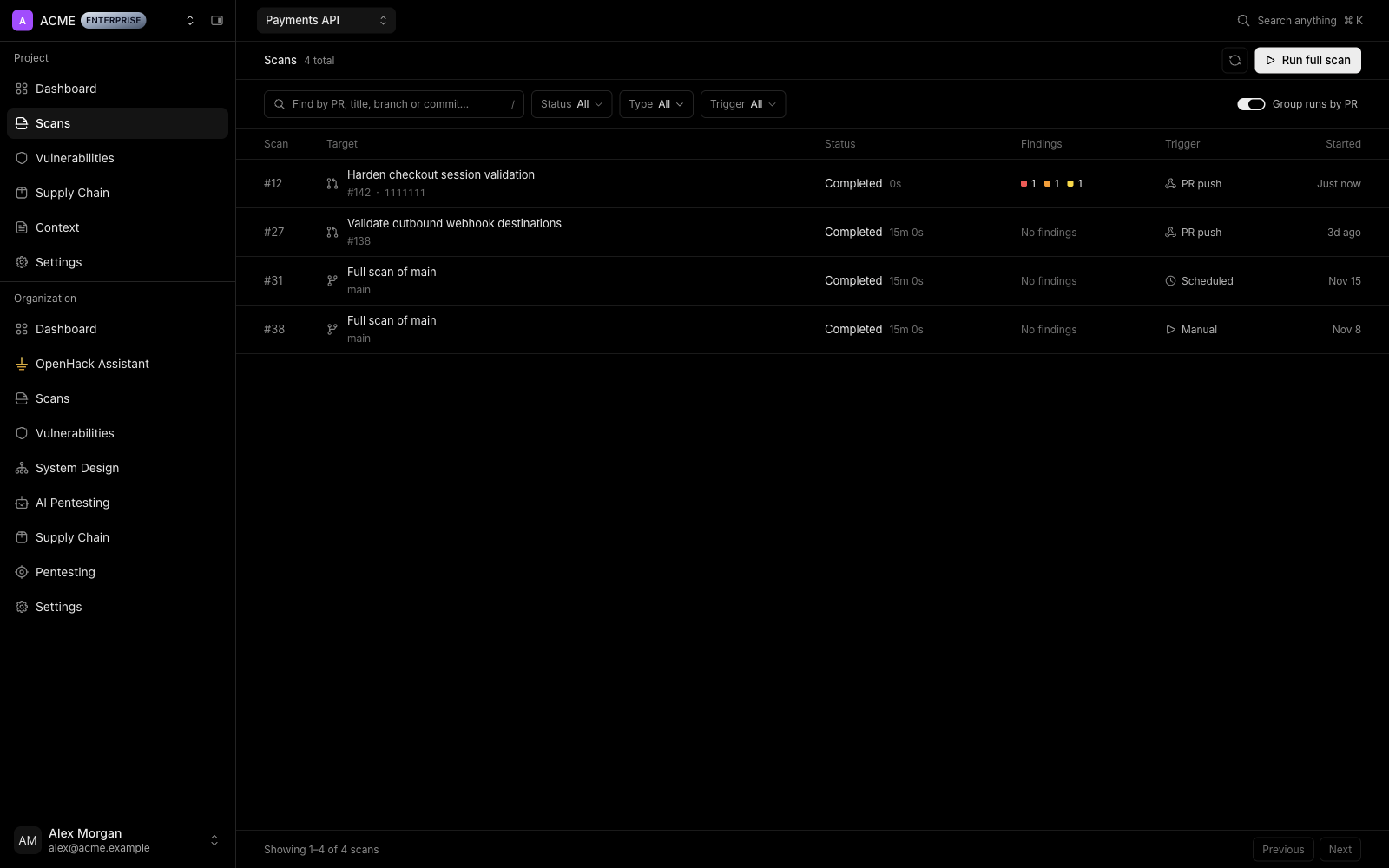
Use scan type, status, and findings to choose the run to inspect. Actual product screen with fictional ACME demo data.
Review results
- Open the completed run you want to inspect.
- Read each finding's description and affected location.
- Review available impact, code context, and remediation guidance.
- Prioritize the findings using severity and application context.
- Make and review changes in your development workflow, then scan the updated code.
See understand findings for severity and evidence guidance. For dependency risks, open Supply Chain and confirm which dependency files were included in the analysis.
Schedule recurring scans
To scan the default branch daily, weekly, or monthly, set up scheduled full scans in project Settings.
Open a finding
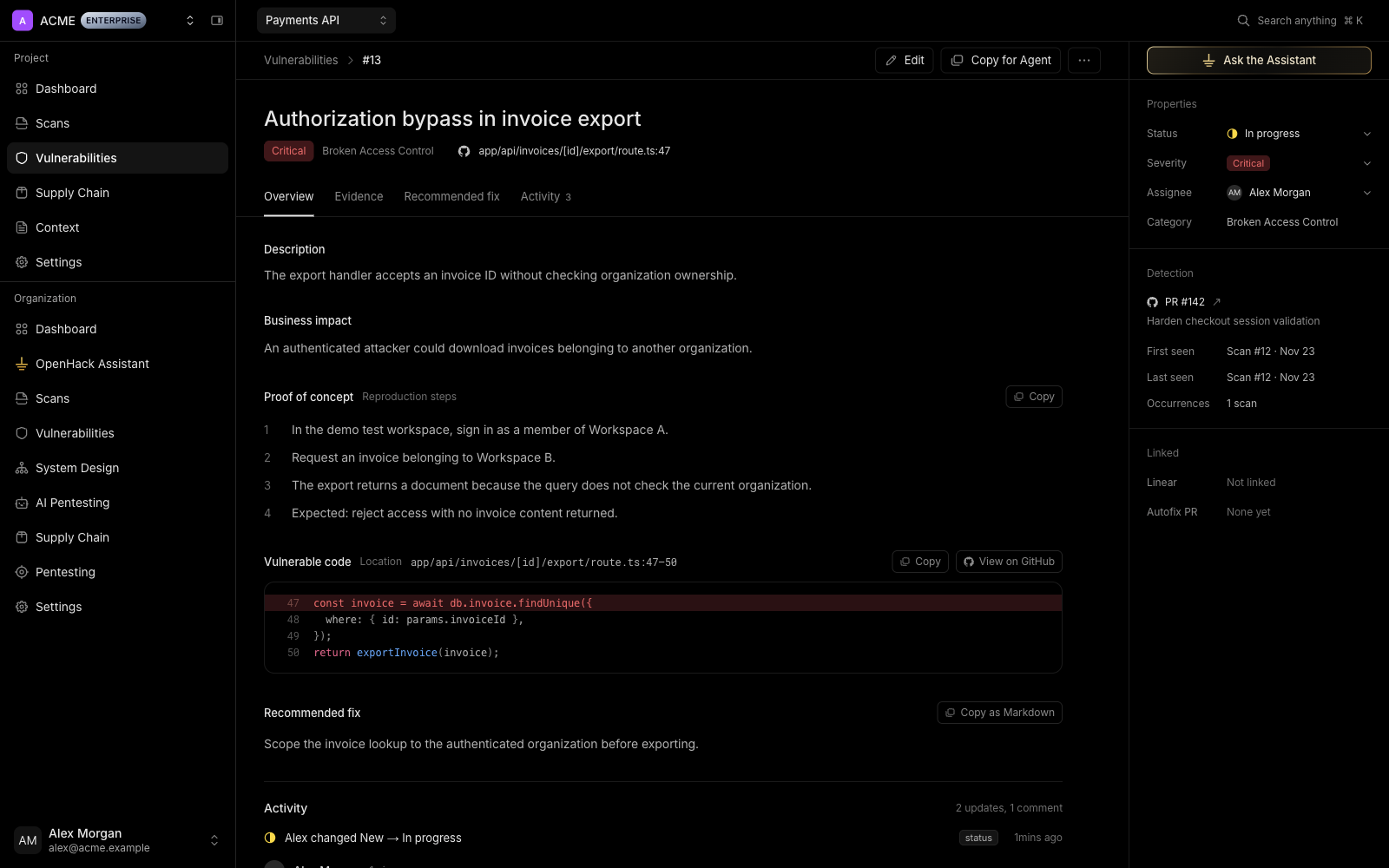
Review the evidence and assign follow-up work after the scan finishes. Actual product screen with fictional ACME demo data.