GitHub pull request reviews
Read OpenHack reviews on GitHub, investigate inline findings, and fix issues individually or in batches.
OpenHack brings security findings into your pull request: a main review summary gives you the overview, and individual comments explain the issues in your changes. You can fix a finding in OpenHack, send it to your coding tool, or work through several findings together.
This guide covers the review experience after your repository is connected. For installation and repository access, see Connect GitHub.
Follow a running review
While OpenHack reviews a commit, scroll toward the bottom of the pull request's Conversation tab, just above Add a comment. Expand the checks list to see OpenHack Review as In progress, with a yellow loading indicator alongside your other CI checks.
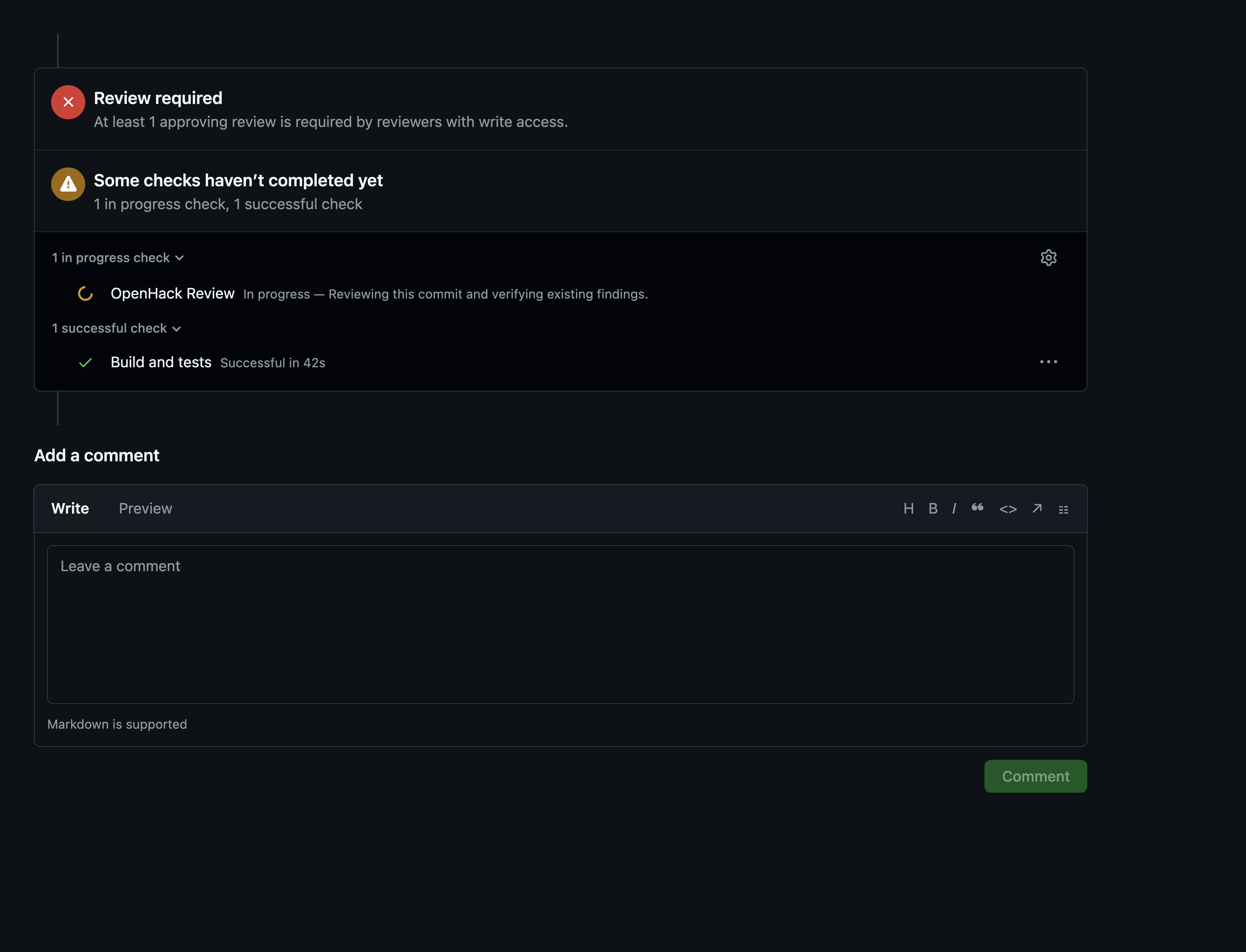
Sanitized dark-mode example of the PR conversation's checks list above the comment box. Check names and statuses use demo data; the OpenHack running message matches the application's check output.
The running check says Reviewing this commit and verifying existing findings. For more detail, open the PR's Checks tab and select OpenHack Review. Its details identify the commit and include View scan in OpenHack and View pull request links.
OpenHack publishes this status through GitHub Checks. It appears alongside CI results without requiring an OpenHack workflow file in your repository. When the review finishes, read the summary and finding comments below. A successful check means the review completed; it does not mean the PR has no vulnerabilities.
Read the main review
After a pull request scan completes, look for OpenHack Summary in the PR conversation. OpenHack updates this summary as the review progresses.
The summary includes:
- The scope of the review and findings at or above your reporting threshold.
- Priority counts: P1 critical, P2 high, P3 medium, and P4 low.
- Files needing attention and an expandable Important Files Changed section.
- Fix actions and an expandable Prompt To Fix With AI.
- The Last reviewed commit and a View review on OpenHack link.
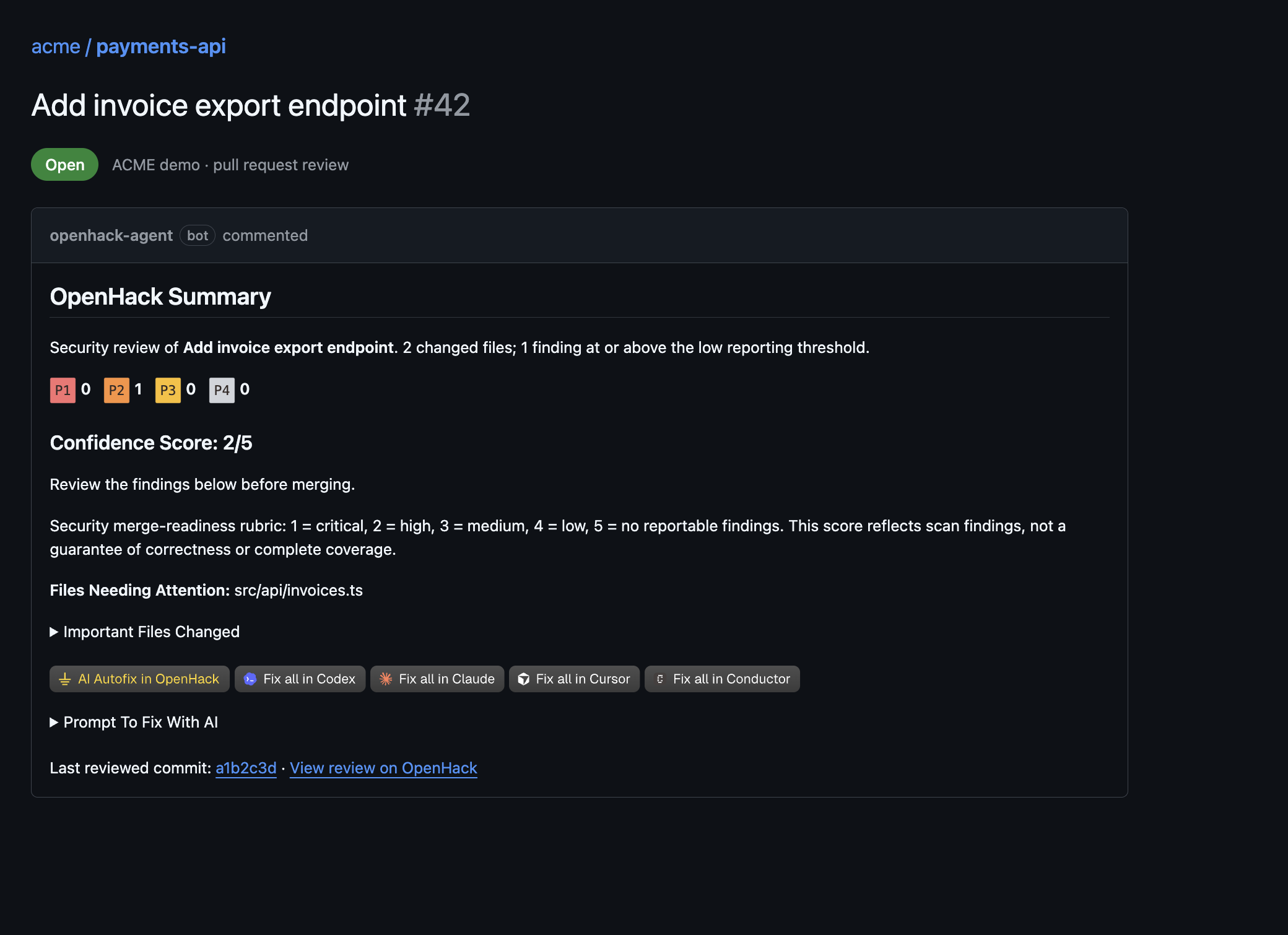
Sanitized example captured in GitHub with Neo. Repository details and review content were replaced locally with fictional ACME data; no real repository code is shown.
The Confidence Score is a severity-based merge-readiness indicator: 1 means critical findings, 2 high, 3 medium, 4 low, and 5 no reportable findings. It is not a probability that the code is secure or a guarantee of complete coverage.
Review findings on the diff
OpenHack places individual findings on the relevant changed lines or blocks in Files changed. Each comment explains the issue, its location, and the recommended fix. It may also include a vulnerability category or CWE reference.
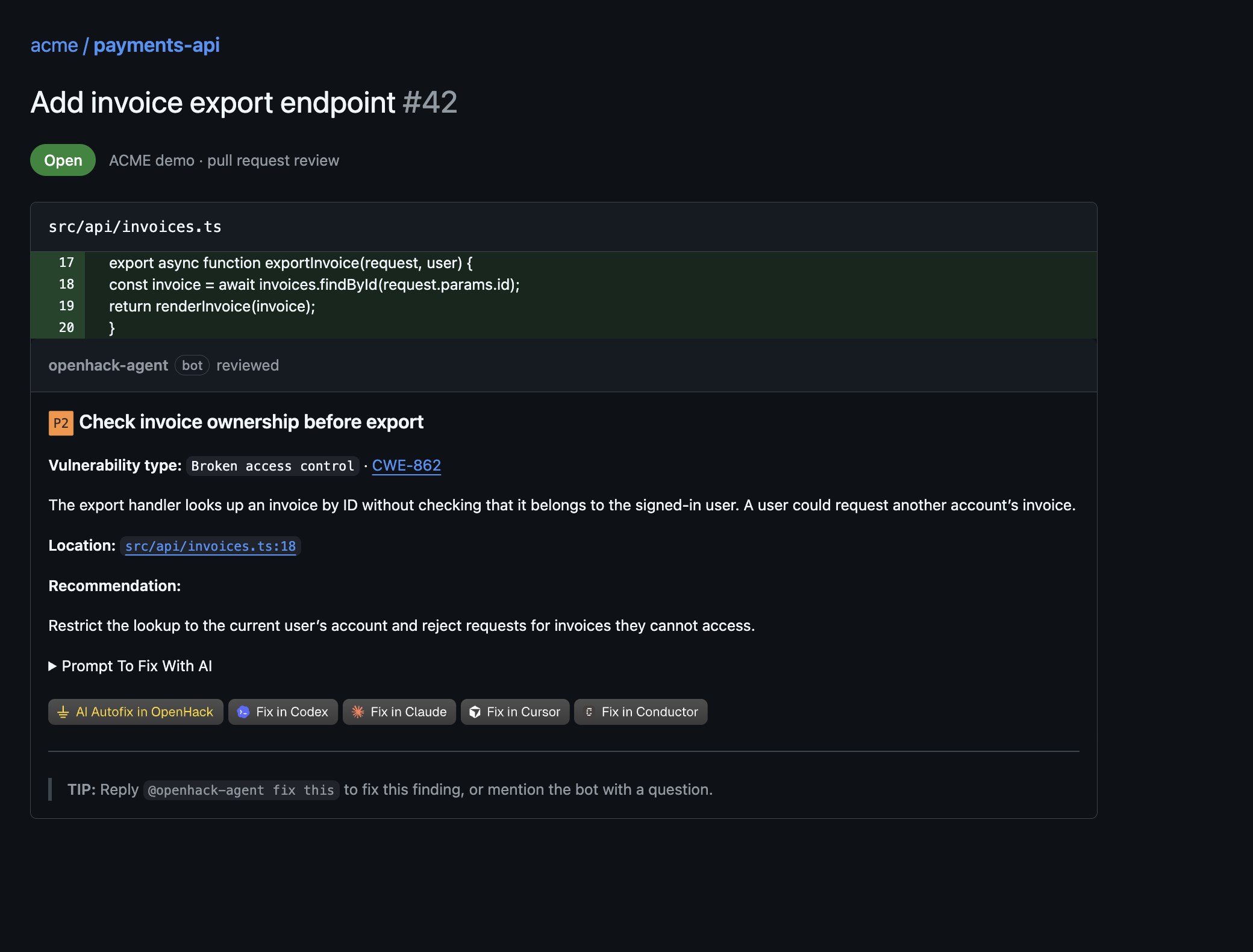
Sanitized GitHub example with fictional findings and dummy code. The highlighted lookup intentionally omits an ownership check to illustrate the review.
If GitHub cannot anchor a finding to a valid line in the PR diff, OpenHack can post it as a conversation comment instead. Check both the main conversation and the file review threads.
Fix one finding in OpenHack
- Choose AI Autofix in OpenHack on the finding.
- Sign in to OpenHack with access to the organization that owns the scan.
- Review the selected finding, then start Autofix.
- Follow the fix status and review the resulting changes.
Opening the fix page does not start a fix. OpenHack commits selected fixes to the PR's branch by default. Autofix availability depends on your organization's access and available credits.
You can also reply to an inline finding with @openhack-agent fix this. Use the bot mention shown in your review if your installation uses a different name. To ask about a finding, mention the bot followed by your question.
Fix several findings
Use AI Autofix in OpenHack from the main summary to open the review's findings together. Select the issues you want to address, then start the batch.
You can select up to 10 findings per Autofix batch. For a larger review, work through additional batches and check the result of each fix.
The review also supports these PR comment commands:
| Command | Scope |
|---|---|
@openhack-agent fix all | Request fixes for all findings in the review. |
@openhack-agent fix unresolved threads | Request fixes for findings in open review threads. |
These commands request work; they do not mean every finding has already been fixed. Check the follow-up status and changes before merging.
Open the findings in your coding tool
The review offers actions for Codex, Claude, Cursor, and Conductor.
| Where you start | Action | What it opens |
|---|---|---|
| An individual finding | Fix in… | A prompt for that finding. |
| The main summary | Fix all in… | A prompt covering the review's findings. |
Install your chosen tool and have the repository available locally. Your browser may ask to open the application. Review the prefilled prompt before sending it.
If a tool does not open, expand Prompt To Fix With AI and copy the prompt into your preferred tool.
Choose which findings appear
In OpenHack, select the project and open Settings → GitHub → Pull requests. Set Minimum severity to report to control which findings appear in the GitHub review. The default is Low and above.
Use Scan pull requests automatically to pause or resume scans when PRs open or receive new commits. Tagging the OpenHack app on a pull request remains available while automatic scans are paused.
OpenHack's review findings are informational; this setting does not configure GitHub merge restrictions.
Check the review after a fix
After pushing changes, check the Last reviewed commit in the summary so you know which revision the review covers. Follow the OpenHack Review check and the updated finding threads.
A completed check means the review run has finished, not that every finding is fixed. A finding marked Verified fixed in this PR refers to the PR's changes; the fix reaches the base branch when the PR is merged.
Use View review on OpenHack to inspect the scan in the platform, or continue with Understand findings.