Connect Linear
Connect a Linear workspace, map projects to teams, and configure issue synchronization.
Open OpenHack and select the organization you want to work in.
Connect Linear to turn qualifying findings into linked issues and keep your team's triage work connected to OpenHack.
Before you start
Use an OpenHack organization owner account and a Linear account that can approve the workspace connection. Create at least one OpenHack project. Linear must be enabled for your organization.
Connect and complete setup
- Open the organization's Settings and select Linear settings.
- Choose Connect Linear and approve the intended workspace in the authorization window.
- Return to OpenHack and choose a Linear team for each project you want to sync. Leave other projects on Do not sync this project.
- Use Apply to all projects only if every listed project should use that team.
- Save the project choices and continue to preferences.
- Review the issue-creation threshold and sync controls, then save and continue, or keep the current preferences.
- Complete the final step to sync existing eligible findings.
Existing linked findings are reused; resolved or excluded findings are skipped during the initial sync. You can leave after syncing starts and return to inspect progress.
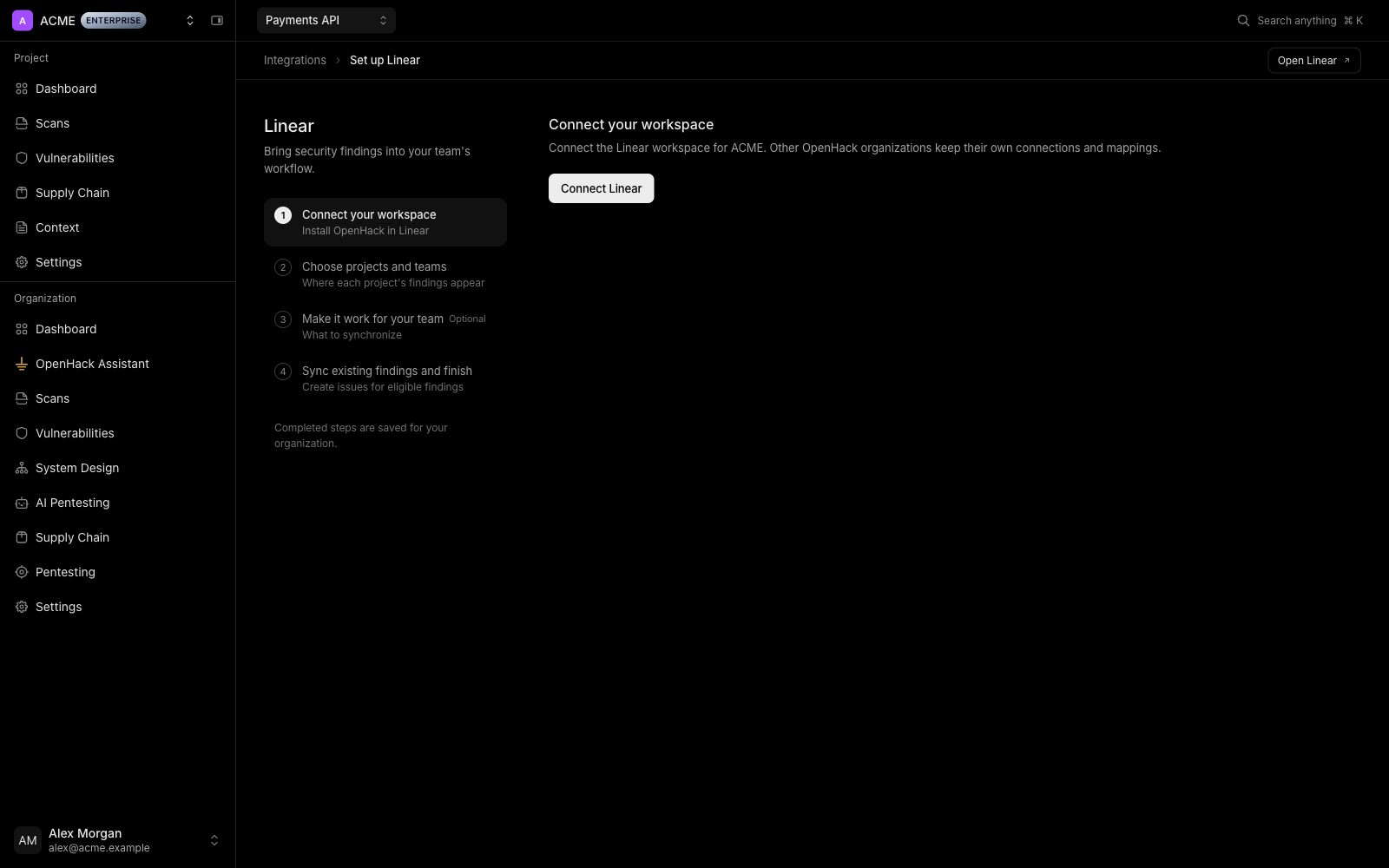
Start with Connect Linear, then complete each setup step. Actual product screen with fictional ACME demo data.
Project setup
After setup, use Project setup to review which Linear team receives each project's findings. Mapping changes save immediately. Check the destination team before enabling a project.
Sync settings
The Sync tab separates issue creation, two-way synchronization, and OpenHack actions.
| Setting | Effect |
|---|---|
| Automatically create issues for | Minimum severity: low and above, medium and above, high and above, or critical only. Saves immediately. |
| Create issues automatically | Create linked issues for new qualifying vulnerabilities. |
| Label new issues | Add the OpenHack label to new issues; Linear labels are not imported. |
| Workflow status | Synchronize mapped statuses in both directions; security resolution rules still apply. |
| Severity and priority | Synchronize finding severity and Linear priority. |
| Comments and activity | Share comments and lifecycle updates on linked findings and issues. |
| Import title and description edits | Let Linear edits update the OpenHack finding. Off by default. |
| Allow Autofix requests | Allow assigning OpenHack to a linked issue to start an Autofix workflow. |
| Answer mentions | Allow questions to @OpenHack; these answers cannot start scans or Autofix. |
Choose Save controls after changing switches. Changing the minimum severity uses its own immediate save.
Notifications and sync progress
Under Notifications, Notify about repeat findings adds a comment to the existing issue when a scan finds the vulnerability again, at most once per scan. Save the controls after changing this setting.
Use the integration's Sync action to check or retry synchronization. Progress distinguishes running, pending, failed, and up-to-date work. If no teams appear, check your Linear workspace access and retry loading teams. If issue creation is usage-limited, review the displayed limit; existing-issue updates can remain enabled.
Disconnect
Open Connection → Disconnect and read the confirmation. Disconnecting clears the connection, project mappings, and issue links. It does not delete OpenHack findings or existing Linear issues. Reconnecting starts a fresh setup.