Import an existing pentest report
Upload a PDF and review its extracted engagement details and findings.
Open OpenHack and select the organization you want to work in.
Import an existing pentest report to create a draft engagement with findings. Review the extracted content before publishing or using it as final evidence.
Prepare the file
Use one text-based PDF, up to 10 MB and 80 pages. Scanned documents need OCR first. Embedded images are not imported.
Importing uses your organization's AI credits and requires access to create engagements. Select the correct organization before uploading the report.
Import and review
- Open the organization's Pentesting page.
- Choose Import report.
- Select or drop the PDF into the dialog.
- Choose Import report and follow the progress through checking, extraction, and saving.
- Once complete, choose Review engagement.
- Compare the engagement details and each finding against the original PDF, including severity, impact, evidence, and recommendations.
- Correct missing or inaccurate details before publishing.
The result is a draft for human review. If no findings were extracted, check the summary against the original rather than assuming the source report had no findings.
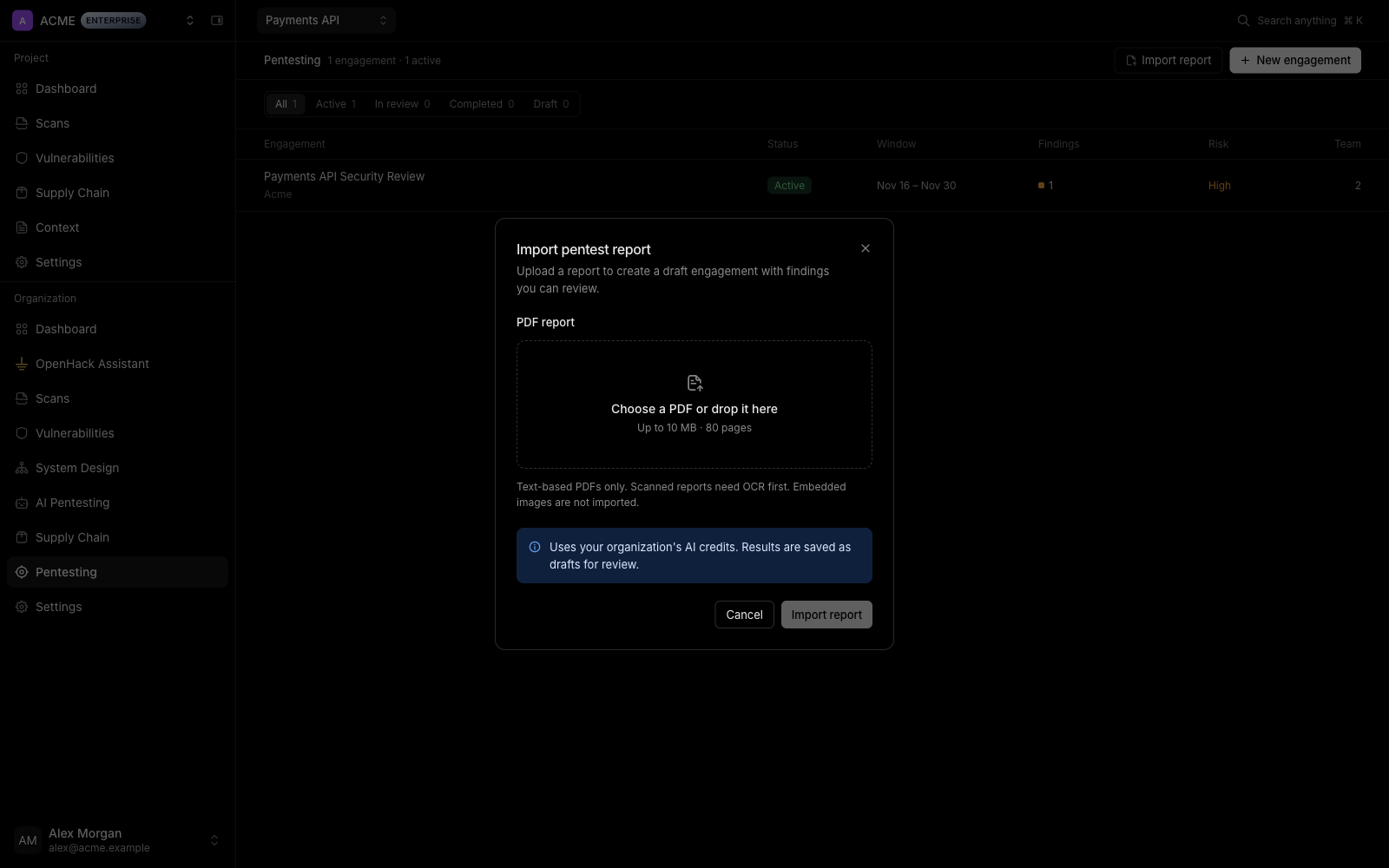
Check the PDF requirements before starting an import. Actual product screen with fictional ACME demo data.
Retry an interrupted import
If the connection is interrupted, retry with the same PDF. The app recognizes an already imported report and returns the existing engagement rather than creating a duplicate. The result screen explains whether extraction ran and whether additional AI usage was recorded.
Export the reviewed engagement
Open the engagement and choose Export Report to open an OpenHack report in a new tab. This generates a report from the engagement's current data; it is not a copy of the original PDF, and imported images are not restored.